
How to use Auth0 as backoffice authentication provider in Umbraco 12
A legacy Umbraco 12 field note on using Auth0 for backoffice SSO, including setup, callback URLs, auto-linking, version limits, and migration guidance.
I use Auth0, which is free for personal use, across several home management applications. Having a separate set of credentials for the Umbraco backoffice became annoying, so I looked for a way to use Auth0 there too.
Umbraco documentation offers instructions for other providers, such as Google, Facebook, Twitter and also a generic Open ID connector.
Starting from those examples, I put together the Auth0 integration shared here.
This is the original Umbraco 12 version of the setup. For the newer backoffice extension model, see the updated guide for Auth0 backoffice login in Umbraco 17.
Auth0 Application
You will need an Auth0 account. You can create one for free at auth0.com/signup.
Once the account is working, go to Applications -> Applications in the sidebar and click “Create Application”.
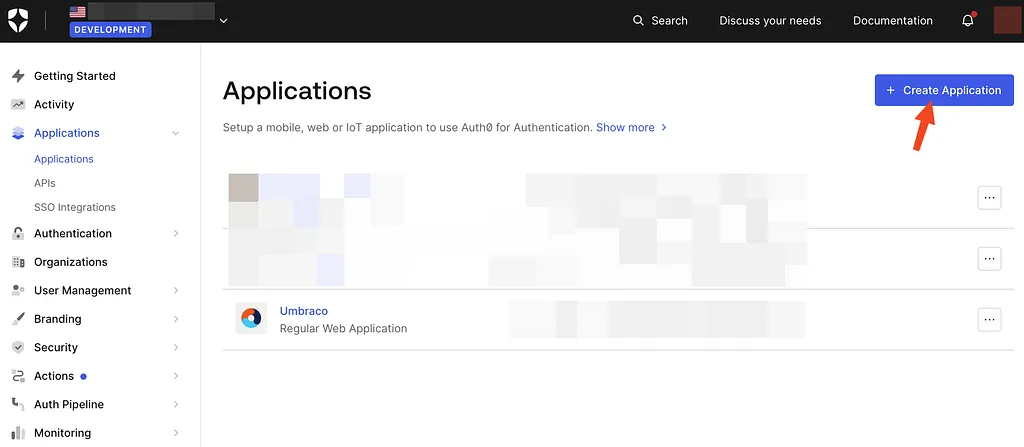
Choose “Regular Web Application”, type a name for your application, and proceed.
You will end up on the application page. Open the “Settings” tab to retrieve the data we need:
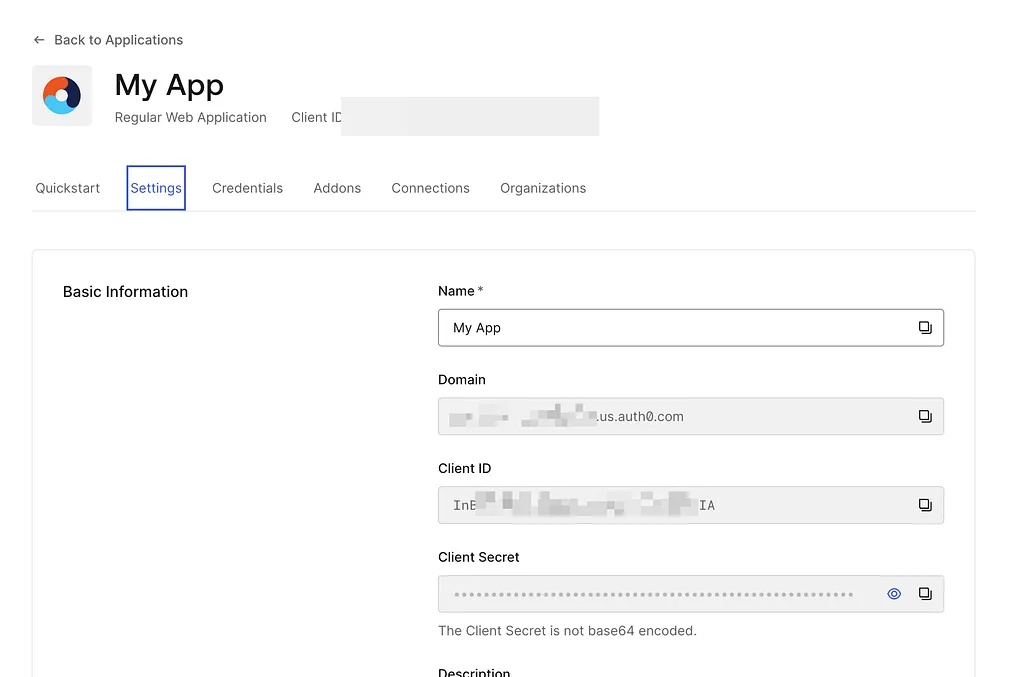
Take note of the Domain, Client ID, and Client Secret. We will need them in a minute.
One last thing before heading to Umbraco: we need to set the callback urls for our authentication.
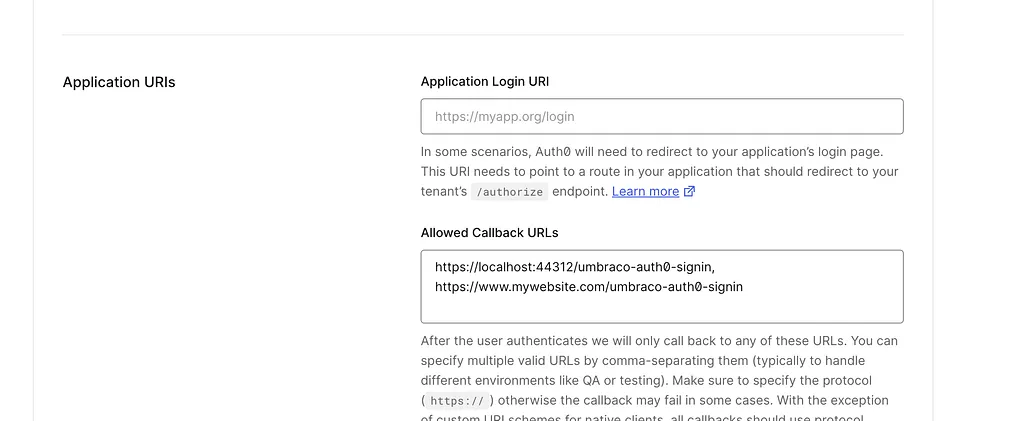
Umbraco will use the /umbraco-auth0-signin path for the authentication provider, although you can change it. Add that path to your website URL.
I also added the localhost URL for development. The port may differ in your project.
How to manage users on Auth0
The simplest way to manage users is through User Management -> Users.
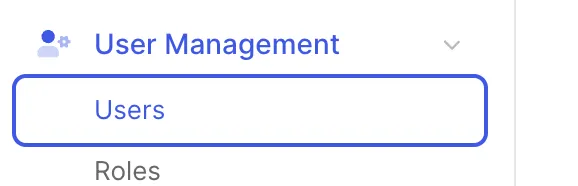
All users created here will have access to the application. Refer to the Auth0 documentation if you need to restrict that access. For this simple case, the default is enough.
Umbraco Integration
Most of the Umbraco integration relies on the official Auth0 NuGet package:
Auth0.AspNetCore.Authentication 1.4.1
Add it through your IDE or the NuGet command:
dotnet add package Auth0.AspNetCore.Authentication -version 1.4.1Create a folder named ExternalUserLogin inside the project.
Add Auth0BackOfficeExternalLoginProviderOptions.cs to that folder:
using Microsoft.Extensions.Options;
using Umbraco.Cms.Core;
using Umbraco.Cms.Web.BackOffice.Security;

namespace Umbraco.ExternalUserLogin;

public class Auth0BackOfficeExternalLoginProviderOptions : IConfigureNamedOptions
{
    public const string SchemeName = "OpenIdConnect";

    public void Configure(string? name, BackOfficeExternalLoginProviderOptions options)
    {
        ArgumentNullException.ThrowIfNull(name);

        if (name != Constants.Security.BackOfficeExternalAuthenticationTypePrefix + SchemeName) return;

        Configure(options);
    }

    public void Configure(BackOfficeExternalLoginProviderOptions options)
    {
        // Customize the login button
        options.ButtonStyle = "btn-inverse";
        options.Icon = "icon-lock";

        // The following options are only relevant if you
        // want to configure auto-linking on the authentication.
        options.AutoLinkOptions = new ExternalSignInAutoLinkOptions(
            // Set to true to enable auto-linking
            true,

            // [OPTIONAL]
            // Default: "Editor"
            // Specify User Group.
            new[] { Constants.Security.EditorGroupAlias }
        )
        {
            // [OPTIONAL] Callback
            OnAutoLinking = (autoLinkUser, loginInfo) =>
            {
                // Customize the user before it's linked.
                // Modify the User's groups based on the Claims returned
                // in the external login info.
            },
            OnExternalLogin = (user, loginInfo) =>
            {
                // Customize the User before it is saved whenever they have
                // logged in with the external provider.
                // Sync the Users name based on the Claims returned
                // in the external login info

                // Returns a boolean indicating if sign-in should continue or not.
                return true;
            }
        };

        // [OPTIONAL]
        // Disable the ability for users to login with a username/password.
        // If set to true, it will disable username/password login
        // even if there are other external login providers installed.
        options.DenyLocalLogin = false;

        // [OPTIONAL]
        // Choose to automatically redirect to the external login provider
        // effectively removing the login button.
        options.AutoRedirectLoginToExternalProvider = false;
    }
}
This configuration class is based on ProviderBackOfficeExternalLoginProviderOptions from the generic OpenID implementation in the official Umbraco 12 documentation.
The second file, Auth0AuthenticationExtensions.cs, isolates the authentication setup used by the Startup class:
using Auth0.AspNetCore.Authentication;

namespace Umbraco.ExternalUserLogin;

public static class Auth0AuthenticationExtensions
{
    public static IUmbracoBuilder AddAuth0Authentication(this IUmbracoBuilder builder)
    {
        builder.Services.ConfigureOptions();

        builder.AddBackOfficeExternalLogins(logins =>
        {
            logins.AddBackOfficeLogin(
                backOfficeAuthenticationBuilder =>
                {
                    var schemeName =
                        backOfficeAuthenticationBuilder.SchemeForBackOffice(Auth0BackOfficeExternalLoginProviderOptions
                            .SchemeName);

                    ArgumentNullException.ThrowIfNull(schemeName);

                    backOfficeAuthenticationBuilder.AddAuth0WebAppAuthentication(
                        schemeName,
                        options =>
                        {
                            options.Domain = "[DOMAIN]";
                            options.CallbackPath = "/umbraco-auth0-signin";
                            options.ClientId = "[CLIENT ID]";
                            options.ClientSecret = "[CLIENT SECRET]";
                            options.Scope = "openid email";
                        });
                }, providerOptions =>
                {
                    providerOptions.DenyLocalLogin = true;
                    providerOptions.AutoRedirectLoginToExternalProvider = true;
                });
        });
        return builder;
    }
}
Here you need to replace the placeholders between brackets with your values from your Auth0 application.
Two settings deserve attention:
DenyLocalLoginprevents local Umbraco users from logging into the backoffice. That suited my setup, but you may want to keep both local and Auth0 login available.AutoRedirectLoginToExternalProviderskips the Umbraco login screen and sends the user directly to Auth0.
The CallbackPath matches the value configured in Auth0.
Finally, attach the Auth0 extension to the Umbraco builder in Startup.cs:
var umbracoBuilder = services.AddUmbraco(_env, _config)
            .AddBackOffice()
            .AddWebsite()
            .AddDeliveryApi()
            .AddComposers()
            .AddAuth0Authentication();
Run the application and log into the backoffice with your Auth0 user.
Known limitations
This code was used and tested on Umbraco 12. Umbraco 14, the current version when this article was first published, changed the authentication code, so this solution does not apply there.
For newer Umbraco versions, start from the official documentation. The reference used by this article is External login providers for Umbraco 12. For current releases, see External Login Providers.
Share