
My Proxmox Homelab: A Small Domestic Datacenter
How I organize a home infrastructure around Proxmox, LXC containers, Docker Compose, Home Assistant, a NAS, Cloudflare tunnels, backups, and experiments.
There is a moment, when you start running services at home, when you stop having “a server” and realize you have a small infrastructure.
For me it happened gradually.
First a few Docker services. Then Home Assistant. Then the NAS. Then the need to separate stable services from experiments. At that point the old mental model, one machine with everything inside it, started to feel too small.
Today my homelab is organized around a single Proxmox host: one machine at home, on a domestic network, with all the constraints that implies. Its organization now feels closer to a small platform than to a single server.
The general shape
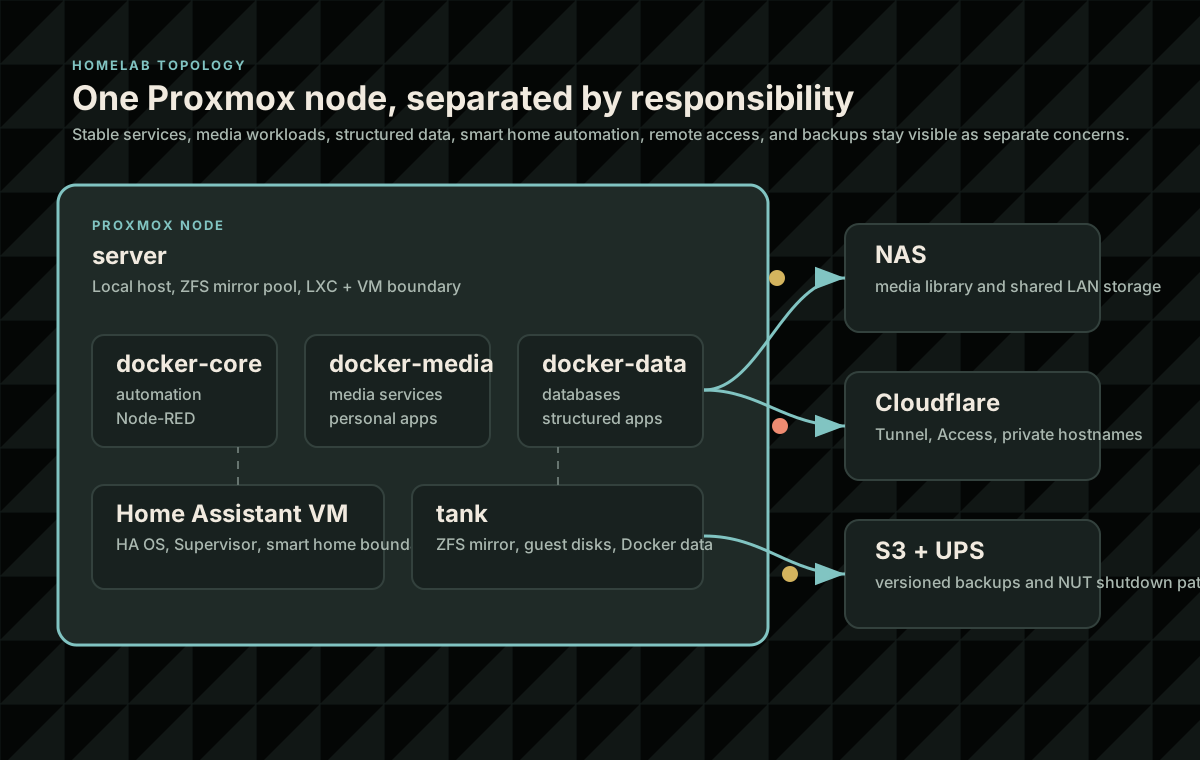
The center of the system is a Proxmox node named server.
Inside Proxmox I keep the main responsibilities separate:
- three LXC containers used as Docker hosts;
- one VM dedicated to Home Assistant;
- a NAS on the LAN mounted by the Docker containers where needed;
- application services distributed according to their role and stability.
The topology is simple on purpose.
docker-core hosts cross-cutting services and automation experiments. docker-media hosts media services, personal applications, and services that feel more “home” than “platform”. docker-data hosts databases and more structured applications.
Home Assistant runs in its own VM. The NAS stays outside Proxmox, but it is mounted into the places that need media or shared storage.
This separation grew from a practical need. I wanted to stop breaking everything whenever I tried something new.
Why Proxmox
I like Proxmox because it sits between two worlds.
On one side, it is simple enough for a home setup. I do not need to build a Kubernetes cluster just to run a few personal services.
On the other side, it gives me a much cleaner separation than a single Linux installation with Docker placed directly on top of it.
I use LXC containers for the Docker hosts because they are light and convenient. Each LXC has its own role, address, bind mounts, and data area. If I need to work on a media service, I go to docker-media. If I need to touch databases or OpenProject, I go to docker-data. If I am experimenting with automations or agents, I usually end up on docker-core.
Home Assistant is different.
For that part of the system I prefer a VM. It lets me follow the most natural path for the Home Assistant OS ecosystem, including Supervisor, its own update model, and a stronger boundary from the rest of the stack.
Docker, with a little discipline
Most application services run through Docker Compose.
For me, Docker only helps when it comes with repeatable conventions:
- stacks live under
/srv/docker/stacks; - persistent data stays next to the related
compose.yml; - maintained services enter the update flow for the Docker host that owns them;
- experiments stay outside that flow until they are stable enough.
That distinction between maintained service and experiment has become essential.
Audiobookshelf and Paperclip, for example, have a clear home on docker-media. Bambuddy, which I am testing for Bambu Lab printer management, is still a trial stack on docker-core. Hermes, a self-hosted AI gateway with Telegram, memory, and voice, is also deliberately outside the automatic update path.
Those boundaries remind me that “it works” does not yet mean “I can update it together with everything else without thinking”.
This is also where the homelab intersects with my agent experiments: the One PR a Day AI company runs as a real service, not only as a local demo.
Storage boundaries
One of the most useful choices was separating system disks from application data.
Proxmox lives on a dedicated local disk. Guests and Docker data live on a mirrored ZFS pool named tank. Inside that pool, I keep separate areas for:
- LXC root filesystems;
- VM disks;
- Docker data for
core,media, anddata.
The Docker containers do not treat the LXC root filesystem as the place where everything belongs. Application data is mounted from the Proxmox host side through bind mounts.
That makes it easier to understand where important state actually lives. It also makes backup, migration, and recovery discussions much less vague.
The NAS is another part of the system, but I do not treat it as magic storage that is always available. It is an external dependency on the LAN.
For services like Jellyfin or Audiobookshelf, it makes sense to read media from the NAS while keeping configuration and metadata in local Docker stack data. That split keeps the large media library separate from the service state that needs tighter operational care.
Home Assistant and Node-RED
Smart home automation is one of the main reasons this homelab exists.
Home Assistant is the integration point, but it is not always where the most important logic lives. In my setup, many practical automations go through Node-RED, running on docker-core.
That helps for two reasons.
First, some automations are easier to read as flows than as YAML. Second, when something behaves incorrectly, I can inspect the flow, compare it with sensor history, and adjust the logic directly.
A concrete example is the washing machine.
I had an end-of-cycle notification that fired too early. The problem was not mysterious. The machine was entering low-power pauses while the program was still running, and my threshold was too aggressive.
Looking at the power sensor history made the fix obvious: seeing low wattage for a few minutes was not enough. The rule needed a longer quiet window and a minimum cycle duration before declaring the wash complete.
That is what makes a homelab interesting to me. It is not just application hosting. It is infrastructure that adapts to real life.
Remote access and security
Some services need to be reachable from outside the house. For that I use Cloudflare Tunnel and Cloudflare Access.
The technical part matters, but the bigger problem is mental clarity:
- what is public;
- what is private;
- what goes through a dedicated Access application;
- what is protected by a wildcard convention such as
*-private; - what could accidentally remain exposed because it does not follow the convention.
I like the *-private naming convention because it makes intent visible. If I see portainer-private or nodered-private, I already know it should not be an open endpoint.
But conventions only work if they are verified. That is why I keep a documented matrix of hostnames, tunnels, and Access applications.
Home Assistant is a special case.
Protecting it with Access makes sense for a browser session, but it can be more fragile with the mobile app. The app is not always happy behind a flow designed primarily for web sessions.
That is one of those places where security and convenience do not line up perfectly.
Updates: automatic, but not too automatic
Over time I learned that a global update command is useful only if I know exactly what it includes.
My standard flow updates the Proxmox node and the three Docker LXC containers. For application containers I use Makefiles local to each Docker host, with a curated list of stacks.
Not everything enters that flow.
Experimental stacks, locally built images, unusual sidecars, and services with delicate credentials need a different level of care.
OpenProject reminded me of a simple but important detail: not every service in a Compose file is an image you can pull from a registry. If one service is built locally, a naive docker compose pull can fail or produce misleading signals.
The working procedure has to distinguish between pullable images and components that must be rebuilt.
These are small details, but they are exactly the details that separate “I have containers” from “I have a platform I can maintain”.
Backups and UPS
The least romantic part is also the most important one: backups.
The previous server had a nightly flow to S3. After moving to the Proxmox structure, that model needs to be rebuilt more deliberately.
The direction I like is synchronizing /tank/docker to S3 with versioning enabled, and including Proxmox configuration as part of the recovery story.
For my personal use, I still value a simple recovery model: open S3, find a file, restore an earlier version. Tools like restic are more powerful, but direct file visibility is useful when the system is small and personal.
There is also a UPS connected to the Proxmox node and visible through NUT.
I can already see the battery. What is still missing is a coordinated shutdown sequence for VMs, LXC containers, and the host before it runs out.
Again, having a component is not the same thing as having a complete procedure.
Questions Every Service Brings
Each new homelab service brings the same questions:
Every new service brings the same set of questions:
- where does it live?
- who updates it?
- where does it store data?
- what happens if the NAS does not respond?
- how do I reach it from outside?
- is it included in backups?
- is it a stable service or an experiment?
At first those questions feel excessive.
Then the first broken update arrives. Or the first wrong notification. Or the first service that only works because one directory has exactly the right permissions. At that point the questions stop feeling excessive and start feeling like the right level of discipline.
My homelab is a domestic platform for experimenting, learning, and using the things I build. A little infrastructure discipline keeps those experiments from disrupting the daily automations and services that eventually become part of life at home.
References
- Proxmox VE documentation: https://pve.proxmox.com/pve-docs/
- Docker Compose documentation: https://docs.docker.com/compose/
- Home Assistant installation options: https://www.home-assistant.io/installation/
- Cloudflare Tunnel documentation: https://developers.cloudflare.com/cloudflare-one/connections/connect-networks/
- Network UPS Tools: https://networkupstools.org/
Share